

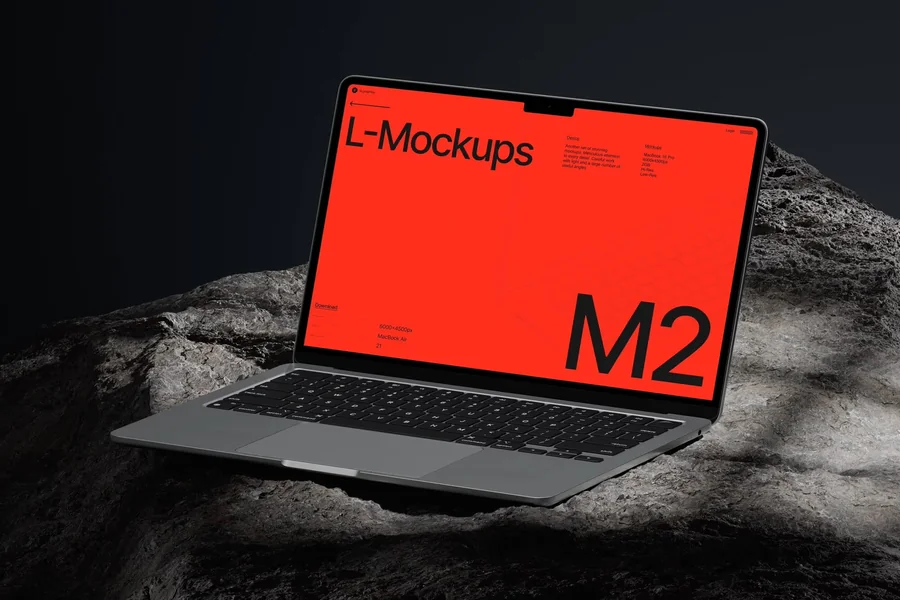
A laptop mockup gives a website or app a familiar setting. It helps a client see how a dashboard fits on a screen and gives a portfolio project a considered presentation.
The challenge is finding a scene that works with your design. A dramatic angle might suit a bold landing page but obscure the details of a data-heavy interface. Editing controls matter, too, especially when a client asks for a different background after approving the first version.
Here are four resources to consider, along with practical advice on choosing between free templates, premium collections, and online generators.
Which Laptop Mockup Resource Fits Your Project?
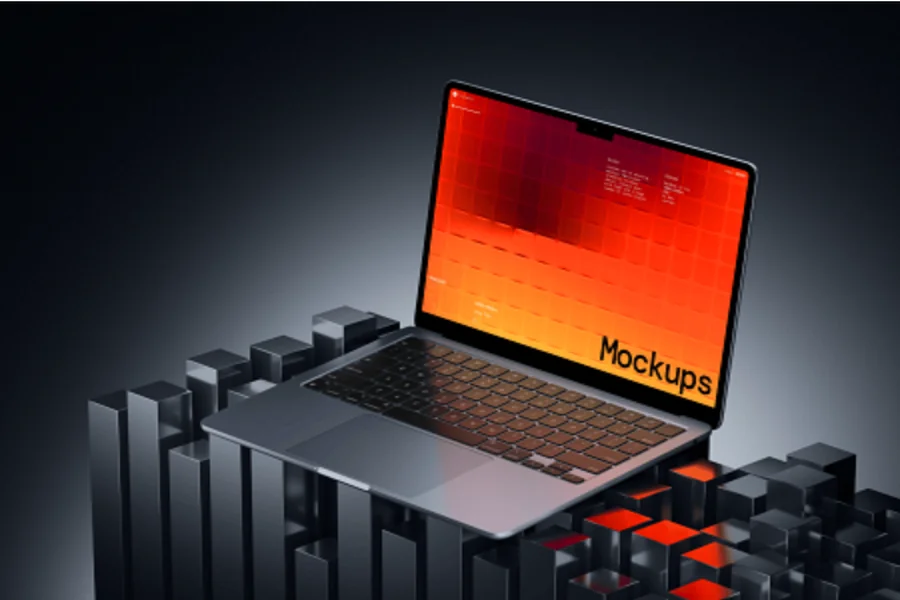
Start with the deliverable. A portfolio cover needs a strong composition at thumbnail size. A client presentation needs readable content. A product teaser may benefit from a short animation.
| Resource | Best suited to | What to check |
| LS Graphics | Minimal laptop scenes and animated presentations | Device model, scene type, and available formats |
| Mockup World | Finding free laptop PSD templates | Editable layers, background controls, and individual asset terms |
| Artboard Studio | Browser-based compositions with images or screen video | Asset access and export options |
| Placeit | Quick presentations built around existing templates | Scene suitability and how revisions are handled |
Try your actual interface in a scene before settling on it. Preview artwork can make almost any mockup look appealing; your own screenshot will reveal whether the angle, lighting, and crop are useful.
1. LS Graphics: Static Mockups, Live Mockups, and 3D Studio
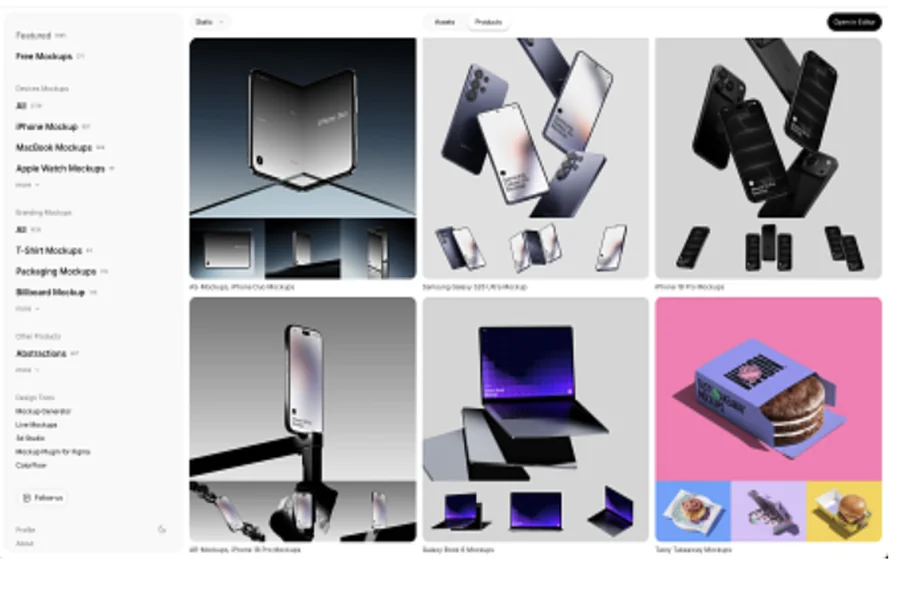
The LS Graphics laptop mockup collection includes MacBooks, Windows laptops, and free assets. Its browser-based mockup editor offers three modes for presentation design.
Static Mockups provides thousands of photorealistic device and branding scenes: insert your design, customize the scene, and export an image. Live Mockups offers hundreds of animated device mockups with adjustable 3D devices, viewing angles, lighting, and animation presets. 3D Studio includes 14 scenes and presets, with keyframes for camera and device animation.
Search mockups, place images or videos, crop and scale designs, and customize colors, backgrounds, and effects. Export options include PNG, PSD, SVG, MP4, and WebM; availability depends on the mode, scene, and subscription plan.
For a SaaS dashboard, choose a readable near-front view. Use a static scene for a case study, a preset animation for a quick product reveal, or keyframes when the presentation needs a planned camera move and pause. Check that your chosen laptop scene supports the required controls.
2. Mockup World: Free Laptop Mockup PSDs
Mockup World is a useful starting point when you need a free laptop mockup and already work with PSD files. Its listings include templates with smart objects for replacing screen artwork.
The amount you can edit varies by download. Some templates let you change the background and adjust separate elements; others provide a screen smart object within a fixed composition. One laptop listing, for example, explicitly specifies a fixed background.
That restriction may be perfectly acceptable for a single portfolio image. It becomes more troublesome if a client later needs the same laptop on a different backdrop.
Read the file description before downloading. Check which elements are editable, whether the resolution suits your output, and where the original creator’s usage terms are provided.
3. Artboard Studio: Browser Editing With Screen Video
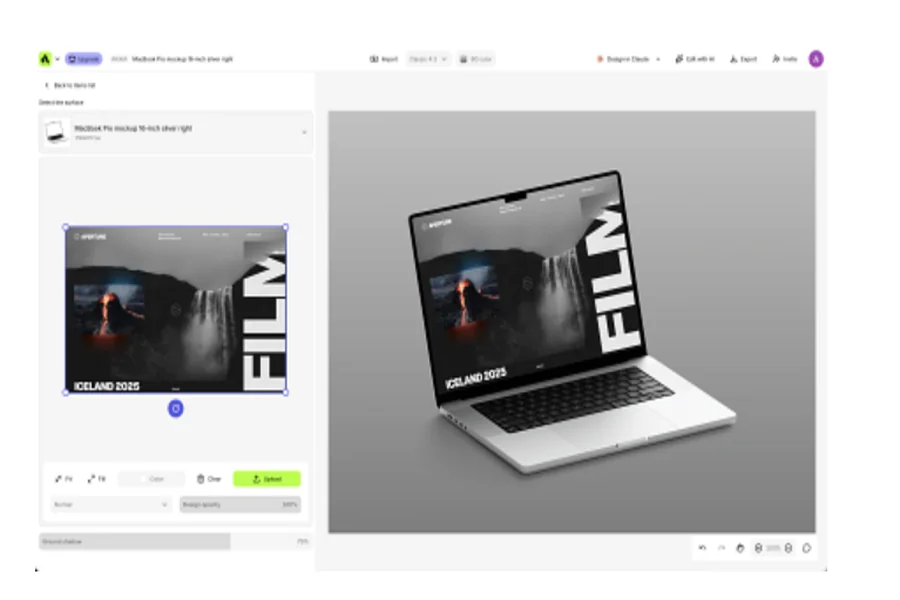
Artboard Studio supports browser-based mockup creation with images and videos placed on mockup surfaces. It also offers image and video exports, alongside Figma and Adobe Express plugins.
Consider it when a short screen recording helps explain the product. Opening a navigation panel or updating a chart can show a useful interaction without requiring a full walkthrough.
Keep screen playback and device animation separate in your brief. A video playing inside a laptop display demonstrates the interface; movement of the laptop itself serves a different presentation purpose. Confirm that the selected asset and workflow support the result you need.
For detailed UI work, one focused interaction is usually easier to follow than a fast scroll through an entire website.
4. Placeit: Quick, Template-Based Presentations
Placeit suits projects where an existing scene already fits the brief. Choose a template, upload your artwork, and make adjustments online.
Its workflow is worth understanding before you commit: Placeit does not provide editable PSD files. Changes to the mockup are made through its website, so the downloaded result will not give you the layer control of a Photoshop template.
That can work well for a straightforward website preview or promotional image. For a presentation likely to need extensive compositing, check whether the online controls give you enough flexibility.
Pay particular attention to the screen angle. A perspective that works for oversized typography may make a dashboard’s smaller controls difficult to distinguish.
How to Choose a Realistic Laptop Mockup
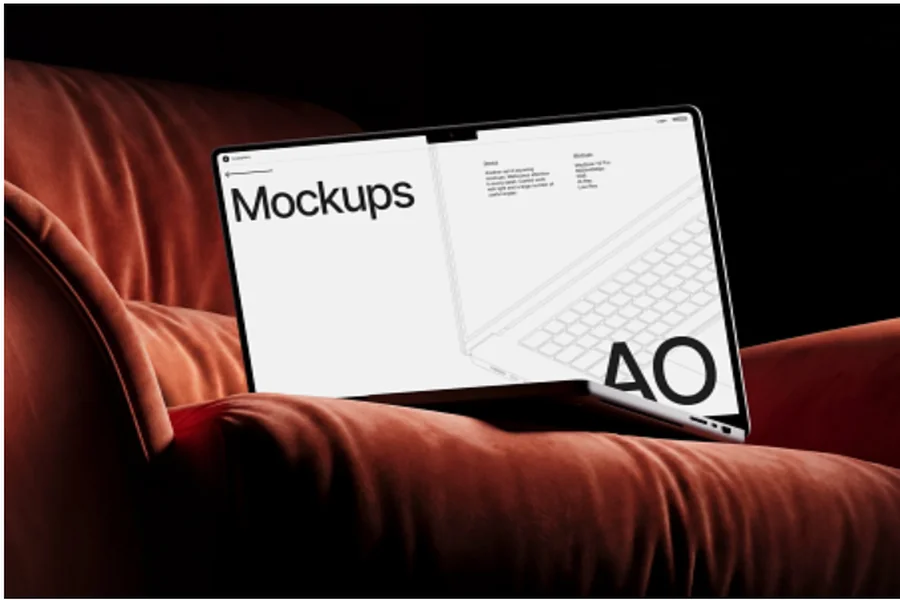
A convincing scene needs both believable device detail and readable screen content. Reflections, shadows, and perspective all affect how easily someone can understand the design.
Check these four elements:
- Screen angle: Keep important content visible without requiring the viewer to zoom in.
- Lighting: Avoid highlights that wash out text, navigation, or key controls.
- Device choice: Select a laptop that makes sense for the product and its audience.
- Composition: Leave enough room for the interface and any accompanying headline or caption.
Prepare your screenshot at proportions suited to the display. Stretching it to fill the screen distorts typography, icons, and spacing. If the proportions differ, adjust the crop or capture the interface at a more suitable viewport size.
Review the export where it will actually appear. A full-size scene may look impressive on your monitor but lose most of its detail in a small portfolio card. For a client deck, check it at slide size; for a website, inspect the intended layout.
Free vs Premium Laptop Mockups
Free mockups: advantages. They keep costs down and let you test presentation ideas before buying a collection. A well-made free laptop mockup can be enough for a portfolio thumbnail, an internal review, or a single client slide.
Free mockups: limitations. You may have fewer device models and matching angles to choose from. Fixed backgrounds, limited layers, or lower resolution can make revisions harder. Check commercial-use permissions and attribution requirements; free does not mean unrestricted.
Premium mockups: advantages. A suitable paid collection can provide coordinated views, more scene choices, and finer editing controls. These help when a case study needs several consistent images or a campaign requires different crops. If the assets already fit the brief, they can also reduce editing time.
Premium mockups: limitations. The purchase or subscription adds to the project budget, and you may pay for scenes you never use. A higher price does not guarantee better screen readability or more control. Some assets require specific software, while online access and export options may depend on the plan.
Choose free when one suitable scene covers the task. Consider premium when matching views or specific controls justify the cost. Before committing, check resolution, editable elements, required software, and license terms, especially for client handover.
When to Use an Online Laptop Mockup Generator
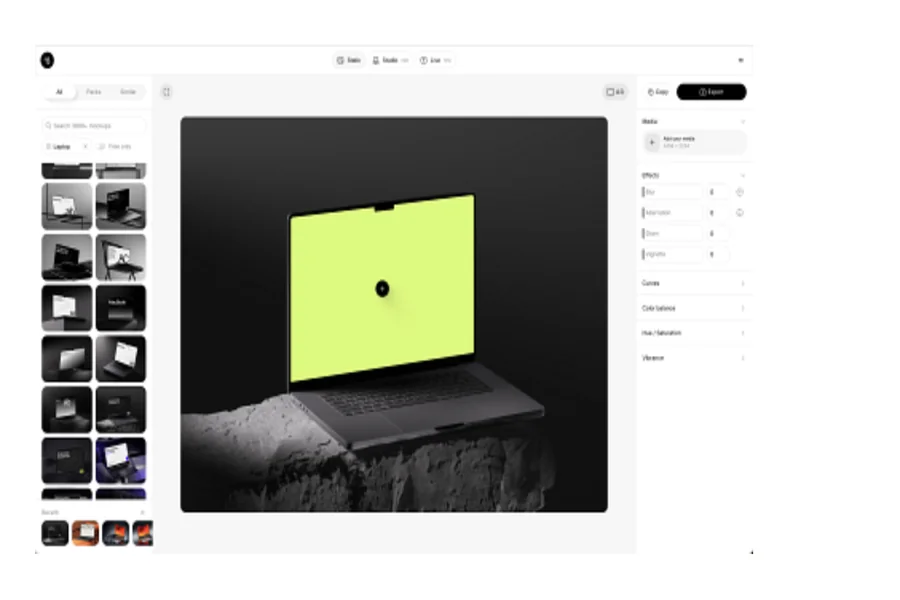
An online editor is convenient when you need to replace screenshots and revise a presentation without managing large PSD files.
The online mockup generator by ls.graphics supports Static Mockups, Live Mockups, and 3D Studio. Choose the mode and laptop scene to match your image or animation needs, then check the available controls and export options.
Use motion where it helps the presentation: a slow turn can introduce a product, while a screen recording can explain an interaction. Leave enough time for viewers to register the interface.
For a detailed case study, pair the animation with a static close-up. Readers can then inspect the layout at their own pace.
FAQ
Where can I find free laptop mockups without Photoshop?
Look for a browser editor with free laptop scenes or a mockup compatible with a design tool you already use. Before preparing the final presentation, check the selected asset’s export resolution, watermark conditions, and usage terms.
Are free laptop mockups suitable for client work?
Yes, when the asset’s quality and permissions meet the project requirements. A paid collection becomes useful when you need matching scenes, a specific device, or additional editing controls. Judge the asset against the deliverables rather than its price alone.
How do I put my app screen into a laptop mockup?
Export a screenshot at suitable proportions, then open the template or editor. Replace the screen artwork and adjust its position or crop without stretching it. Review reflections and text clarity, export the result, and inspect it at the size you will use in the final presentation.
Should I use a PSD template or an online generator?
Choose a PSD when you need access to editable layers for detailed adjustments or compositing. An online generator is convenient for screen replacement and scene changes within the editor’s controls. Either approach can produce a convincing presentation; the selected asset and available controls determine how well it fits your project.
Keep the Interface Easy to Read
Shortlist LS Graphics for static and live device scenes, Mockup World for free PSD options, and Artboard Studio or Placeit for browser-based workflows.
Then make the decision with your own design in place. Check the screen angle, preserve the screenshot’s proportions, and review the export at its intended size. The most useful laptop mockup gives viewers enough context to understand the product and enough clarity to appreciate the interface.
